Import a bank or credit-card statement
Upload one PDF, CSV or XLSX statement to Bank Feed History and review its transactions.
Last reviewed 29-09-2026
Use Upload Statement to turn a downloaded statement into editable BookFlo history. This is a file import, not an automatic bank connection. You need Bank Feeds access, a selected company and a configured, accessible Reckon company file.
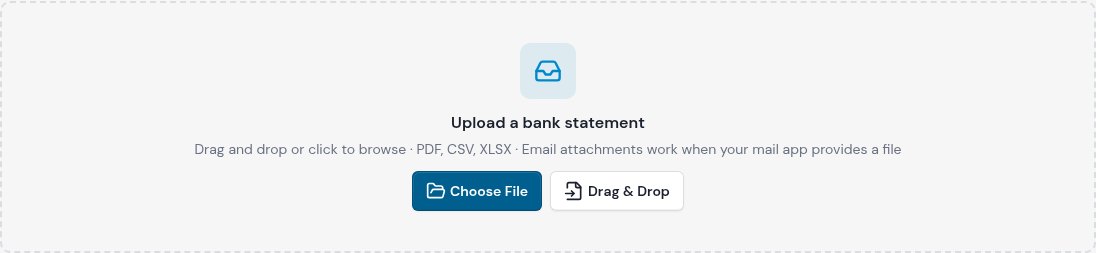
With the shared file selected, the statement upload area is available. This entry-point image was taken before any statement was uploaded.

The signed-in import opened the statement-specific Feed History view with one fictional draft. The draft and its statement record were removed after this capture; nothing was pushed to Reckon.
- Choose the company in the sidebar, then open Bank Feed → Upload Statement. Wait for its Reckon file to load. If the page says No Reckon file configured, arrange a default file before importing; if it says Could not load Reckon files, select Retry file discovery. Confirm the file named below the upload area is the intended destination.
- Under Statement details, choose Bank account or Credit card. This choice affects how withdrawal and payment directions are interpreted: bank withdrawals become Cheques and deposits become Deposits; card purchases become CC Charges and card credits become CC Refunds.
- Optionally set Source account to the corresponding bank or card account. This improves duplicate detection. If accounts cannot load, select Retry, or leave it blank and assign the account in Feed History.
- Select Choose File, or drop one real file on the upload area. Drag & Drop explains where to drop; it does not open a picker. Supported picker formats are .pdf, .csv and .xlsx; uploads are limited to 30 MB. Old .xls workbooks are rejected: export them as .xlsx or .csv first. An attachment dragged from a mail app only works when that app supplies an actual file.
- Wait through Reading statement…, Preparing transactions… and Saving to Feed History…. Do not change company mid-import. BookFlo opens Feed History after the rows are saved. Inspect the imported statement notice and the number marked as possible duplicates; choose Show all history to leave the imported-statement view.
- Open Details on each transaction and check date, direction, payee, amount, source account and suggested coding before pushing. Matching names, remembered coding and rules are suggestions, not a guarantee of accuracy.
For example, a fictional 18-09-2026 bank CSV might contain a AUD 84.70 outgoing purchase and AUD 250.00 incoming deposit. Select Bank account and the account the export came from; check that the outgoing row is a Cheque and the incoming row a Deposit. Dates in downloaded files may differ from the DD-MM-YYYY date shown in the help examples.
Expected result: Saved rows appear in Feed History as drafts or already mapped possible duplicates; importing alone does not post them to Reckon. Duplicate detection on save compares the same account, dates within one day and amounts within AUD 0.02. It is a warning, not proof that two transactions are identical; a missing source account weakens that comparison.
If Statement not imported appears, read its error and check that the statement contains transactions. For a PDF extraction problem, try the bank's CSV/XLSX export. An unsupported .xls needs conversion; do not merely rename it. Review the destination file before trying again: a failure while saving is not a reason to assume nothing was stored. See Review and code history, Duplicates and pushing and Reckon troubleshooting.