Review and code transactions in Feed History
Edit transaction details, expense splits, sales lines and saved payee coding before posting.
Last reviewed 29-09-2026
Feed History is the review area for imported statements and Quick Entry transactions. Select the sidebar company and check the current Reckon file before editing. Bank Feeds access is required; pushed transactions are locked for ordinary coding changes.
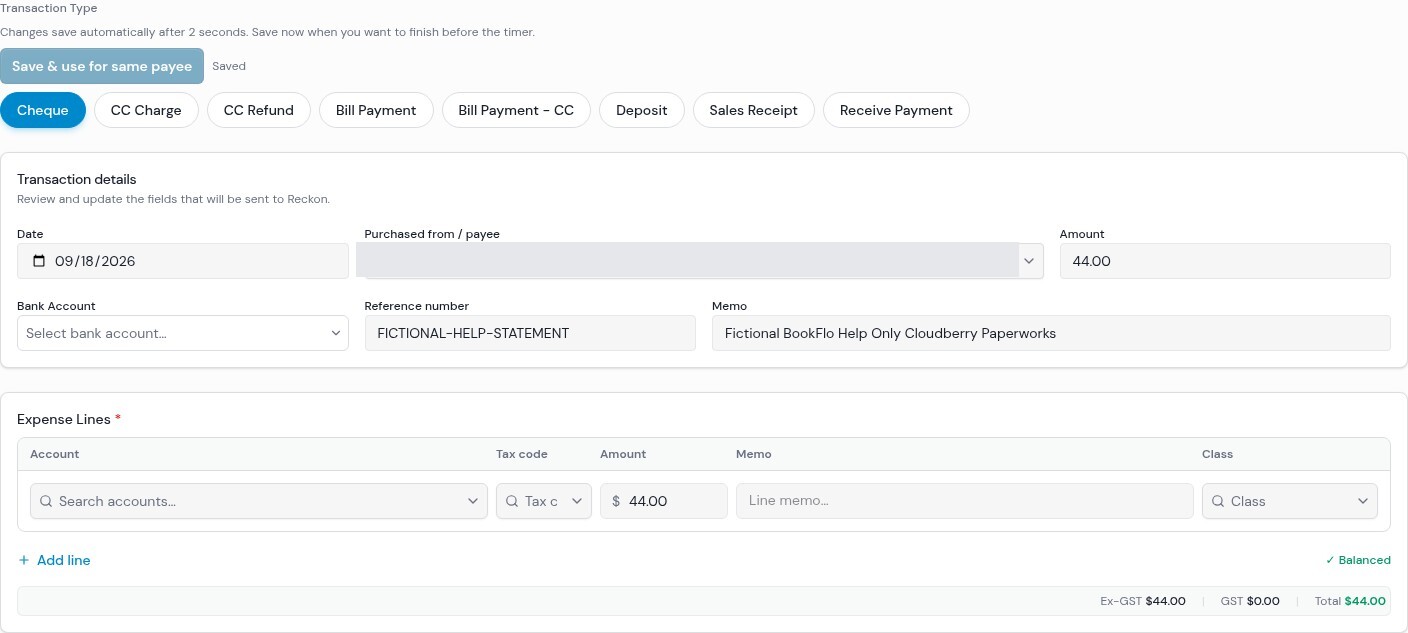
The imported fictional draft shows the transaction type, account selectors, expense line and balancing total. Its suggested payee display is masked; account fields were left empty, no coding was saved, and the draft was deleted afterward.
- Open Bank Feed → Feed History (or follow the redirect after an import). If an import banner is present, inspect its possible-duplicate count and select Show all history when you want the full list. Use Find and manage history to narrow the list.
- Select a row's Details. Under Transaction Type, choose the correct type: Cheque, CC Charge, CC Refund, Bill Payment, Bill Payment - CC, Deposit, Sales Receipt or Receive Payment. Sales Receipt is a history editor option, not a Quick Entry option. Changing type may change which coding/allocations are required.
- In Transaction details, check Date, Purchased from / payee (or Customer for Sales Receipt/Receive Payment), Amount, the account label appropriate to the type, Reference number and Memo. A Deposit also has From / Income Account. Use the actual bank/card and Reckon account, not simply the first suggestion.
- For Cheque, CC Charge or CC Refund, edit the expense lines: add/remove lines and check each account, tax code, class, memo and amount. An imported payee preference may prefill coding, not a reusable monetary split: with several remembered lines their amounts must be allocated again. For Sales Receipt, enter item, description, quantity, tax and amount on its sales lines; select Add line if needed. For bill and customer payments, use the allocation guides below rather than ordinary expense splits.
- Changes save automatically after about 2 seconds. Read the Saved / Changes not saved yet indicator before leaving; select Save & use for same payee to finish immediately. A failed save must be resolved before pushing; do not assume a locally edited cell has reached the server.
Saving can change other drafts: both automatic saving and Save & use for same payee can apply payment-account and account/tax coding to other eligible unpushed rows with the same payee in the same file, including rows on other pages or hidden by filters. Expense coding can spread between Cheque, CC Charge and CC Refund rows; a Deposit can also spread its income account. Existing sibling line amounts, memos and classes are not copied from the edited row, and invoice/bill allocations are not copied. Recheck those other rows before pushing, especially if the same supplier has purchases with different tax treatments or payment accounts. This does not push them to Reckon. Successful pushes separately remember payee coding for future entries.
For example, a AUD 165.00 fictional purchase on 21-09-2026 might contain AUD 110.00 of supplies and AUD 55.00 of delivery. Create two expense lines and choose the appropriate account, tax code and class for each; verify their total and the receipt. Do not copy tax treatment merely because the name was recognised.
Expected result: The coded draft is saved in BookFlo and can be pushed separately. Saving, automatic coding, matching a supplier or applying a rule is not an irreversible Reckon post. Editing a pushed entry in Reckon is a separate accounting task; Repush to Reckon creates a further transaction instead of editing the original.
If accounts or suppliers are missing, verify company/file, then use the visible retry control where offered. If a row says Possible dupe, compare it in Reckon before posting. For payments see Supplier bills and Customer invoices; for bulk changes see Manage history, and for reusable rules see Rules.