Review a multi-page bill PDF
Split an analysed PDF into bill segments, correct page ranges and re-extract changed groups.
Last reviewed 29-09-2026
Use this when a single PDF contains several pages or invoices. AI proposes bill segments; it cannot reliably decide every invoice boundary. Have Bills access, choose the correct company and Reckon file before uploading, and keep the original PDF available for comparison. This review is different from Bulk Upload, which accepts multiple separate PDFs and saves drafts.

This is the PDF entry point with a shared company file selected; this entry-point image was taken before upload.
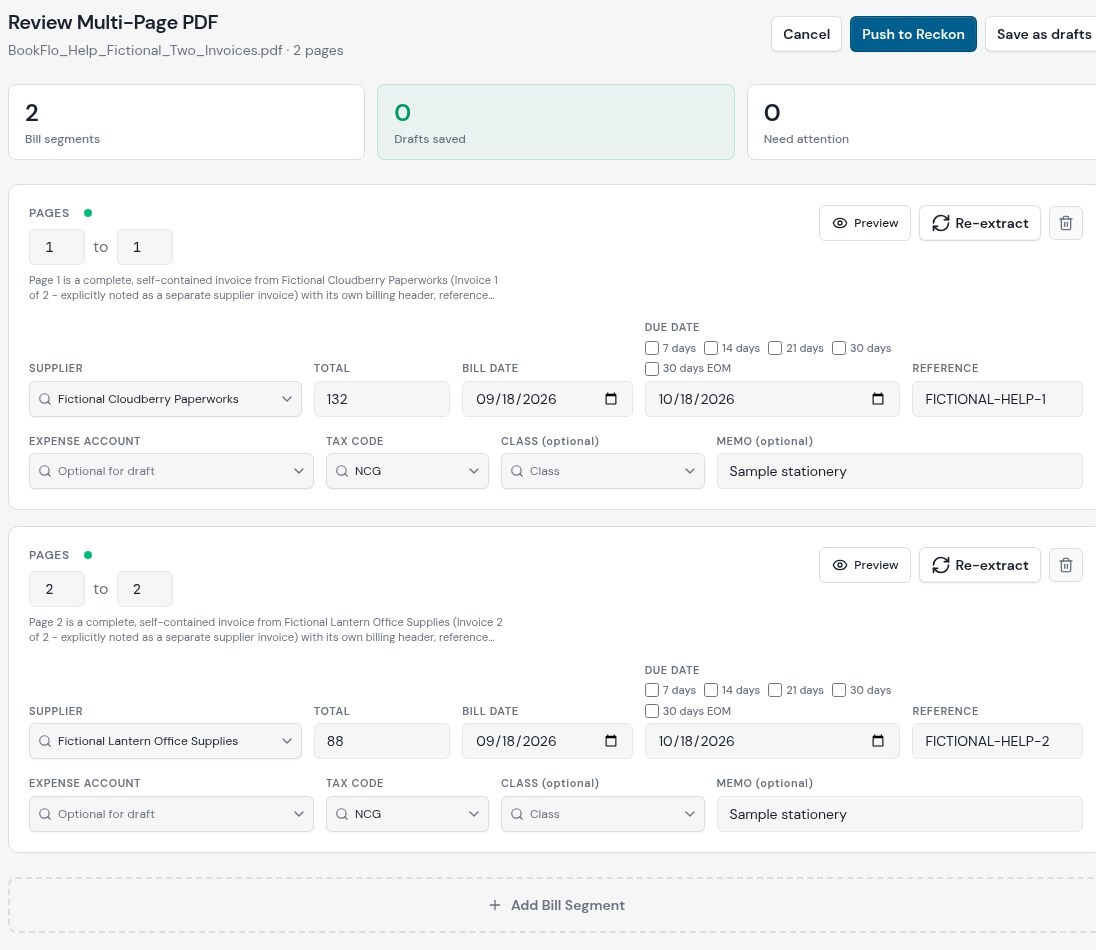
Two unmistakably fictional invoices were uploaded through the signed-in UI and analysed as two segments. The screen is review only: no bill was saved or pushed. The temporary analysis job and its source/result were deleted after capture.
- Open Bills → Enter Bill and upload the PDF. A multi-bill PDF requires a company and Reckon file before analysis. Wait for Review Multi-Page PDF and its page/segment counts.
- Inspect each segment's Pages start/end and use Preview to inspect its actual pages. If grouping confidence is low, verify especially carefully. Change start/end values to correct a boundary. Segments must have valid, non-overlapping ranges within the document; Unassigned Pages are ignored when drafts are created.
- Select Add Bill Segment for a missing invoice; use the Remove bill control for an unwanted segment. Assign all pages you intend to include. After changing a group's pages, select Re-extract for that group before submission. Range errors must be fixed before re-extraction; the page-change warning and Re-extraction required block submission until changed groups are updated.
- For each segment check Supplier, Total, bill/due dates, Reference, Expense account, tax code, class and memo against its pages. An expense account is optional for saving a draft here but required to push. Choose a due-date term only if the invoice supports it; see due dates.
- Choose Save as drafts to review each result later in Bill History. With a supported Accounts Hosted connection and coding complete, Push to Reckon is available before segments are saved. Review per-segment Draft Saved, Pushed or error results. If only some drafts fail, select Retry Failed Drafts; successful segments are not meant to be recreated. Review in Bill History opens saved results. Cancel leaves this review.
Example: The fictional two-page PDF shown above holds a separate AUD 132.00 invoice on page 1 and an AUD 88.00 invoice on page 2. Its proposed segments are 1 to 1 and 2 to 2. Preview each and check its supplier, dates and amount; re-extract if you change a page range. Saving would produce separate draft bills.
Submission limits: the grouped draft submission accepts at most 100 subset PDFs, no more than 20 MB each and 30 MB combined. If the generated groups exceed those limits, divide the original document into smaller source PDFs and process them separately, checking History first for any drafts already saved. These limits are different from the separate-file Bulk Upload queue.
Watch for: A page left unassigned will not appear in either bill. A saved segment cannot be edited in this segmentation view; use Bill History. Pushing to Reckon One is unavailable even if connected. Never retry a push solely because its result is uncertain; see push safety.